If you already have a Spotify playlist built for your class (mixed at home, copied from another instructor, or exported from your DJ set), Profiles.fit can flip the flow: instead of building segments from scratch and then hunting for music, you pick the playlist first and the platform builds the profile with one segment per song.
When to use this mode
- You already curated the music in Spotify and just need to add structure (zones, movements, coaching).
- You copied a DJ set or another instructor's playlist.
- You exported from MixMeister to Spotify and want to import directly from there.
- You recycle themed playlists: grab your "Bad Bunny" or "90s Party" playlist and turn it into a class in 30 seconds.
Prerequisites
- Spotify must be connected under Settings → Preferences → Spotify. Without it, you'll see a message asking you to connect.
- At least one enabled discipline under Settings → Disciplines.
- The playlist must contain at least one song on Spotify (empty playlists fail).
Step by step
- In the sidebar, go to Profiles → New profile.
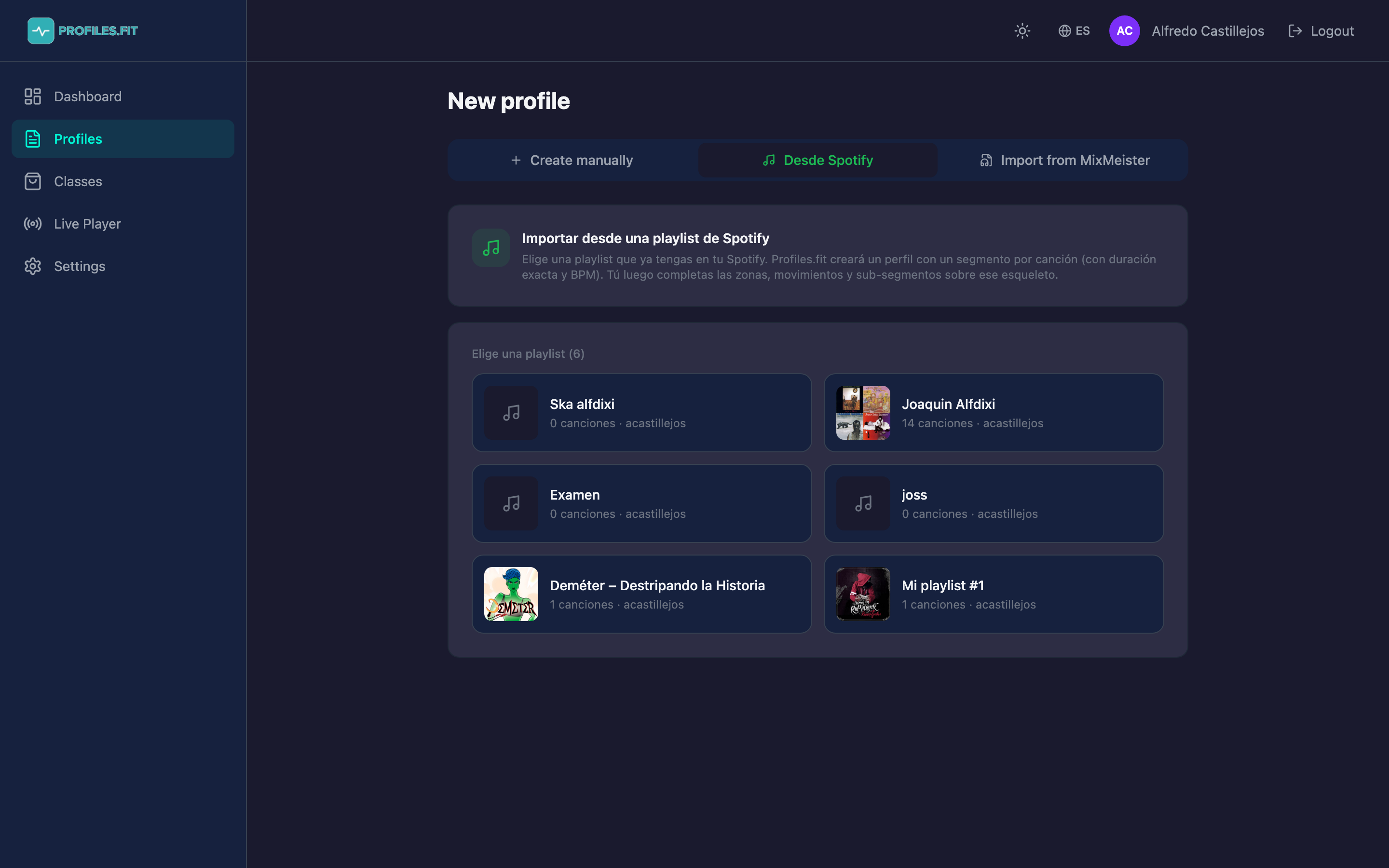
- At the top you'll see three tabs: Create manually, From Spotify, Import MixMeister. Click From Spotify.
- Profiles.fit automatically loads your 50 most recent Spotify playlists with cover art, name, owner and track count.
- Click the playlist you want to import.
- A form opens with the title prefilled from the playlist name. You can change it to something more descriptive like "Spinning 45 min — Bad Bunny Ride".
- Pick the discipline (Spinning, HIIT, Combat, etc.) — this sets the movement/zone matrix that will apply afterwards.
- Optional: pick a dominant energy zone to categorize the profile.
- Click Create profile from playlist.
- In a few seconds (depending on how many songs the playlist has), you're redirected to the profile editor with every segment already created.
What Profiles.fit builds for you
On import, each song in the playlist becomes a segment with:
- Exact duration of the track (in seconds).
- Associated track with title, artist, album and Spotify URI.
- Auto-detected BPM via Spotify's audio features API (when available).
- Identical order to the original playlist.
The profile's total duration is computed from the sum of every track's length and clamped between 10 and 180 minutes.
After importing: what's left to fill in
When you land in the profile editor, each segment has:
- ✅ Correct duration
- ✅ Track with BPM
- ⬜ Movement (empty)
- ⬜ Energy zone (empty)
- ⬜ Cadence (empty)
- ⬜ Coaching notes (empty)
- ⬜ Sub-segments (none)
Your work: edit each segment, pick a movement matching the track's BPM (the editor suggests the cadence range when you pick the movement), assign the Z1-Z5 zone based on target intensity, and add coaching notes for the Live Player.
Tips to get the most out of this flow
- Order your Spotify playlist first: warm-up → climbs → sprints → recovery → cool-down. Then import and just apply zones.
- Lean on the automatic BPM: if a song is detected at 128 BPM, it's a candidate for Z3-Z4 with high cadence. If it's 75 BPM, it's warm-up or cool-down.
- Themed playlist per class: build "Bad Bunny 50 min", "Valentine's 45 min", "Independence Day 60 min". Import each in 30 seconds and you suddenly have 3 classes.
- Adjust the profile duration afterward via "Edit info" if you're over or under — the button is always at the top of the editor.
- Up to 500 tracks per playlist are imported (mega DJ-radio playlists get truncated).
- Local files (MP3s added to Spotify from your computer) aren't imported — only tracks with a Spotify ID.
- BPM isn't always available for brand-new tracks or rare remixes. Those segments are imported without BPM — you can type it manually.
Swapping a track after import
You can. In the editor, every segment has a "Change" button above the assigned track. It opens a quick Spotify text search where you can pick a replacement song. The segment keeps its duration, movement and zone — only the music changes.
Comparison with the other two "New profile" options
- Create manually: structure first, music second. Great when designing from scratch.
- From Spotify (this flow): music first (from an existing playlist), structure second. Great when you already have your set.
- Import MixMeister: .mmp file first, pick Spotify or MP3, structure second. Great when coming from MixMeister.