Creating a class profile is the first step toward the real editor. The initial form is intentionally minimal: you tell the platform which discipline you're teaching, how long the class is, and the dominant energy zone. Everything else gets configured afterward, segment by segment.
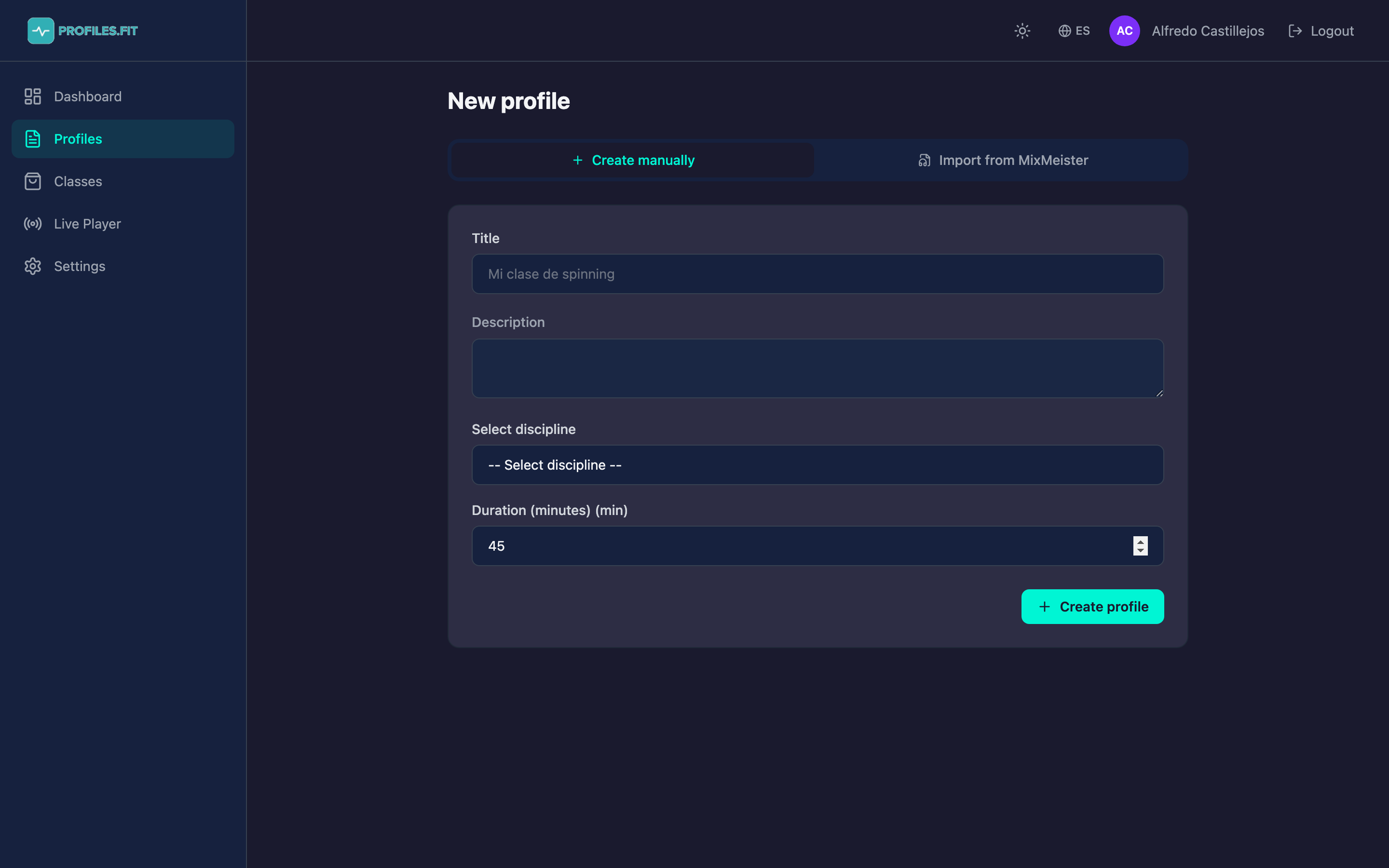
Steps
- From the dashboard, click + Create profile under quick actions. You can also get here from Profiles → New profile in the sidebar.
- Make sure you're in Create manually mode (the other option is Import MixMeister, covered in another topic).
- Enter a descriptive title. Good examples: "Spinning Bad Bunny Ride 45'", "HIIT Father's Day". Avoid generic names like "New class" — you'll have a hard time finding it later.
- Optional: add a short description. It appears in the marketplace and on the exported PDF.
- Pick the discipline in the selector. You'll only see the ones you enabled in Settings → Disciplines.
- Set the duration in minutes, between 10 and 180. You can change it later, but creating segments will auto-recalculate the total.
- Pick the dominant energy zone. It's not required, but helps categorize the profile (Z3 for endurance, Z4 for power, etc.).
- Click Create profile. You're redirected straight to the editor where you'll add segments.
Discipline can't be changed later
Once created, the discipline field is locked because changing
the internal matrix would invalidate every segment. If you picked wrong,
duplicate the profile and create a new one with the correct discipline,
or delete the current one from the list's context menu.
Profile statuses
Every profile starts as Draft. It appears in your list with a gray badge. You can move them to:
- Published: the profile is ready. On the Advanced plan, this makes it eligible to sell in the marketplace.
- Archived: hides the profile without deleting it. Useful for seasonal classes you'll reuse next year.
Actions available from the profiles list
- Click the row: opens the full editor.
- Create Playlist: generates a Spotify playlist with the profile's tracks (requires Spotify connected).
- PDF: exports the profile to Spinning Profile-style PDF (Advanced plan).
- Live: opens the Live Player (Advanced plan).
- Earn credits: publishes the profile to the marketplace (Advanced plan).
- Trash icon: deletes the profile. Asks for confirmation and can't be undone.