The segment editor is the heart of Profiles.fit. This is where your class takes shape: every block of intensity, movement and duration lives in a segment. You add them in order and the editor shows the cumulative time so you match your planned duration.
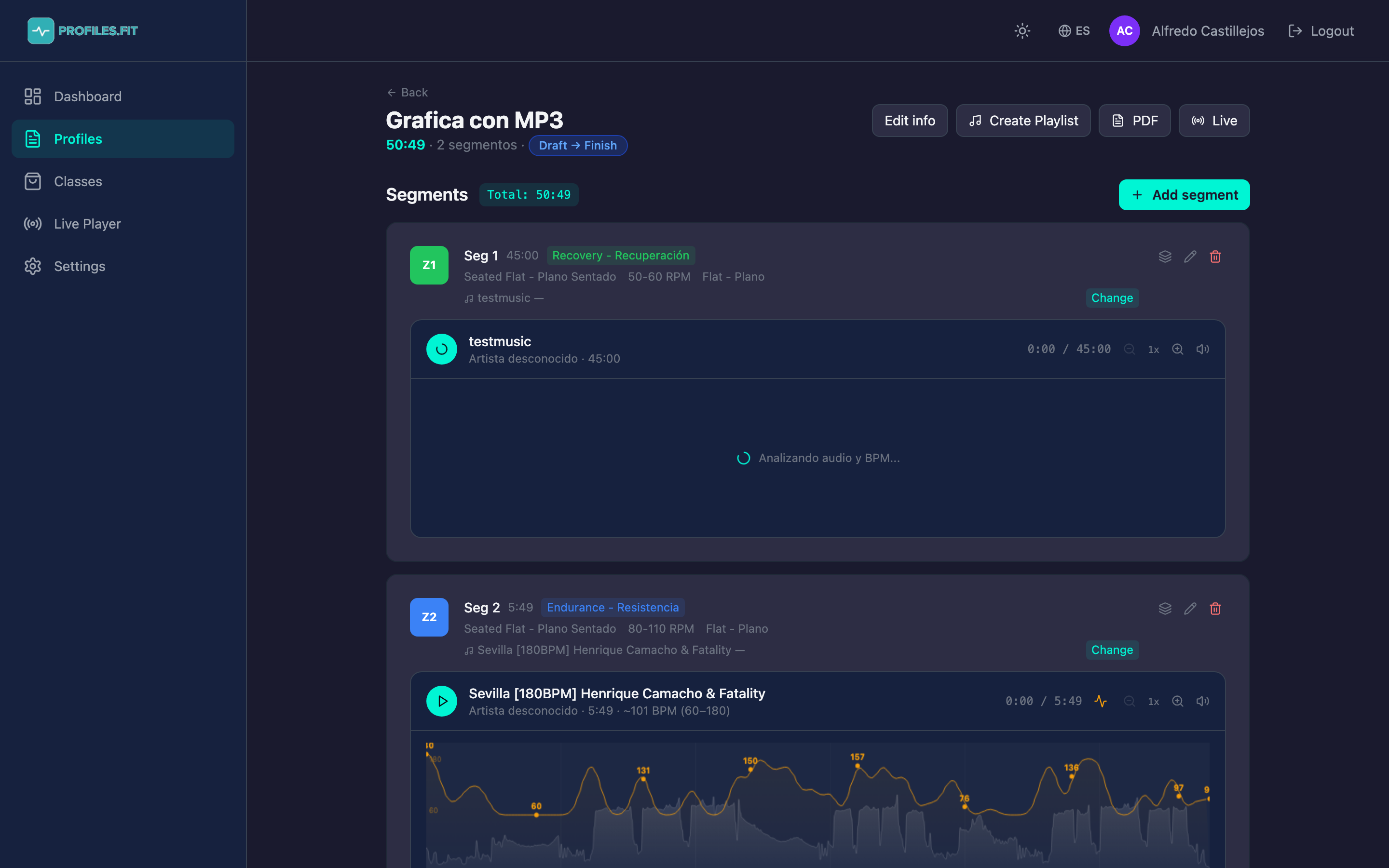
Anatomy of a segment
Each segment contains:
- Sort order (Seg 1, Seg 2, ...) — reorder by dragging.
- Duration in seconds or mm:ss.
- Movement (e.g. Gradual Flat, Seated Flat, Jumping Jacks) — pulled from the discipline's movement catalog.
- Energy zone Z1 to Z5 — determines the segment color in the graph.
- Cadence (RPM) or target BPM depending on the discipline.
- Hand position, resistance, terrain, and other discipline-specific fields.
- Associated track (Spotify or MP3) with its title, artist and duration.
- Coaching notes: free text shown in Live Player and PDF.
Adding your first segment
- In the profile editor, click + Add segment at the top right.
- A New segment panel opens with 3 tabs to choose music: By genre, Free search, Upload MP3.
- Pick a song (music topics have their own tutorial).
- Fill in the segment fields: duration, movement, zone, cadence, etc.
- Click Save segment. The new segment appears in the list.
- Repeat until the class is complete.
Rules that keep you from making mistakes
Every discipline has an internal matrix telling the editor which combinations are valid. For example, in Spinning®:
- If you pick the movement Seated Climb, you can only set zones Z2 to Z4 (the system won't let you use Z1 or Z5 because it doesn't make sense).
- Cadence auto-fills to the typical range for the movement (e.g. 60-80 RPM for climbs).
- Irrelevant fields (load, terrain) disappear if the movement doesn't use them.
This is called the Class Building System and prevents you from building incoherent classes. You can see the full rules in /docs/CLASS_BUILDING_SYSTEM.md in the repository.
Reordering segments
- Grab the segment by the left edge (drag handle icon).
- Move it up or down past other segments.
- The editor updates the order and recalculates times automatically.
Deleting a segment
Each segment has a trash button in the right corner. Clicking it asks for confirmation and permanently removes the segment. The following segments renumber automatically.
Class total
Above the list you see the running Total: mm:ss. If the total doesn't match the profile duration (e.g. you planned 45 min but you're at 52), the editor warns you and you can adjust the duration from Edit info or trim segments.