After logging in you land on the dashboard. It's your control screen: from here you see your account status, how many profiles you have, how many credits you've earned, and what's happening in the marketplace.
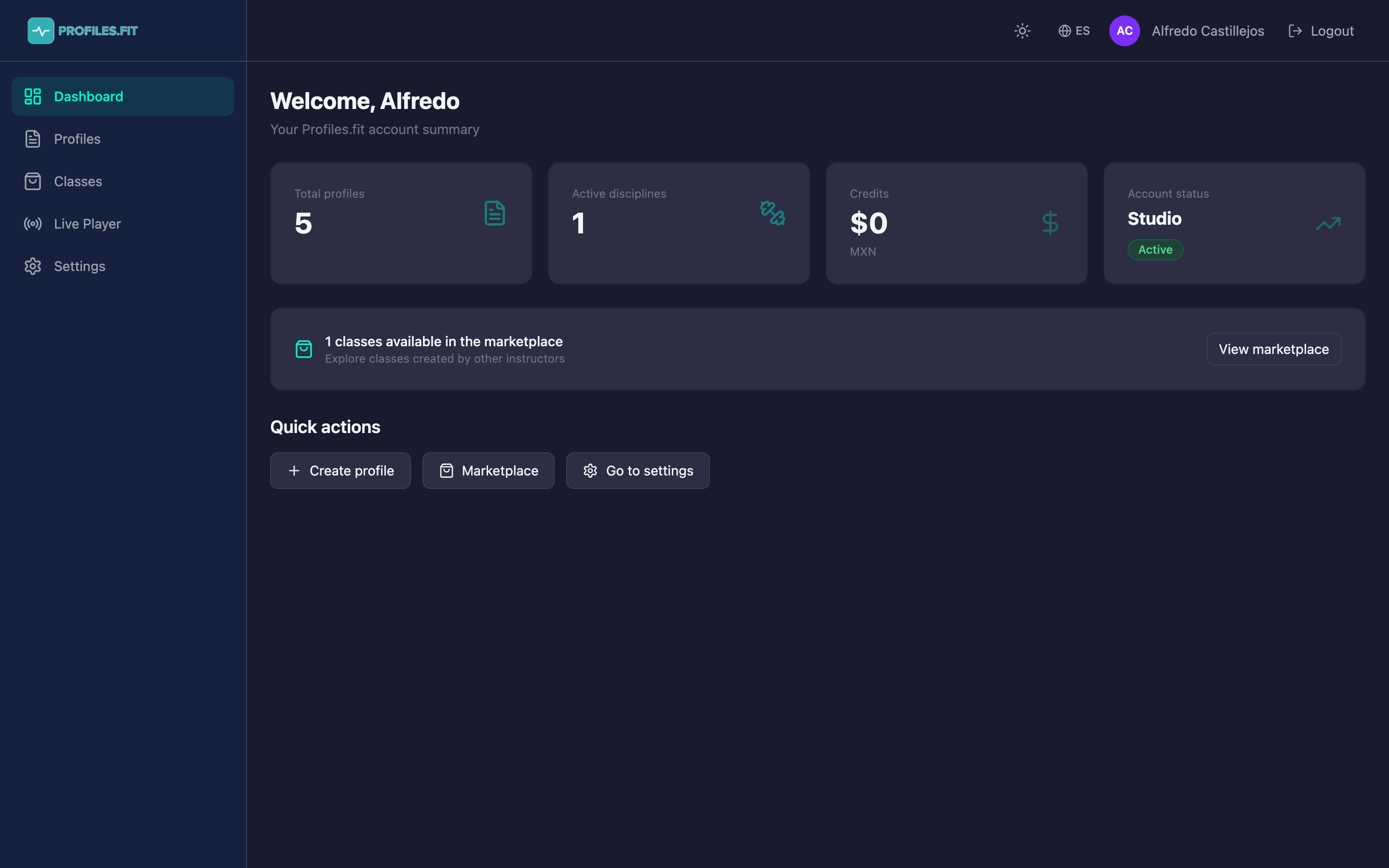
What's on the screen
- Left sidebar with the 5 main sections: Dashboard, Profiles, Classes, Live Player and Settings.
- Top header with theme switcher (light/dark), language toggle (ES/EN), your name and the logout button.
- Personalized greeting with your name and an account summary.
- Four cards with key metrics: total profiles, active disciplines, earned credits and plan status.
- Marketplace banner showing how many classes from other instructors are available.
- Quick actions: create a profile, go to the marketplace, or open settings.
Sidebar: what each icon does
- Dashboard: this very screen.
- Profiles: list of all your classes with status (draft/published), duration and creation date.
- Classes: marketplace view with classes from other instructors you can buy.
- Live Player: real-time playback (Advanced plan only).
- Settings: your profile, preferences, disciplines and billing.
Useful shortcuts
The + Create profile button in quick actions takes you
straight to the new-profile form without passing through the list. It's the
fastest way to start a class when you're in a hurry.
The "Account status" card
Shows the name of your active plan (Instructor, Advanced or Studio), whether you're on trial and how many days remain, or whether you're already subscribed. If the card says Trial, click it to jump to Billing and pick a plan when you're ready.