The Live Player is the screen you use during class to play music and keep track of time, zones and intensities. It's what you put on the TV, projector or iPad while teaching. Available only on the Advanced plan.
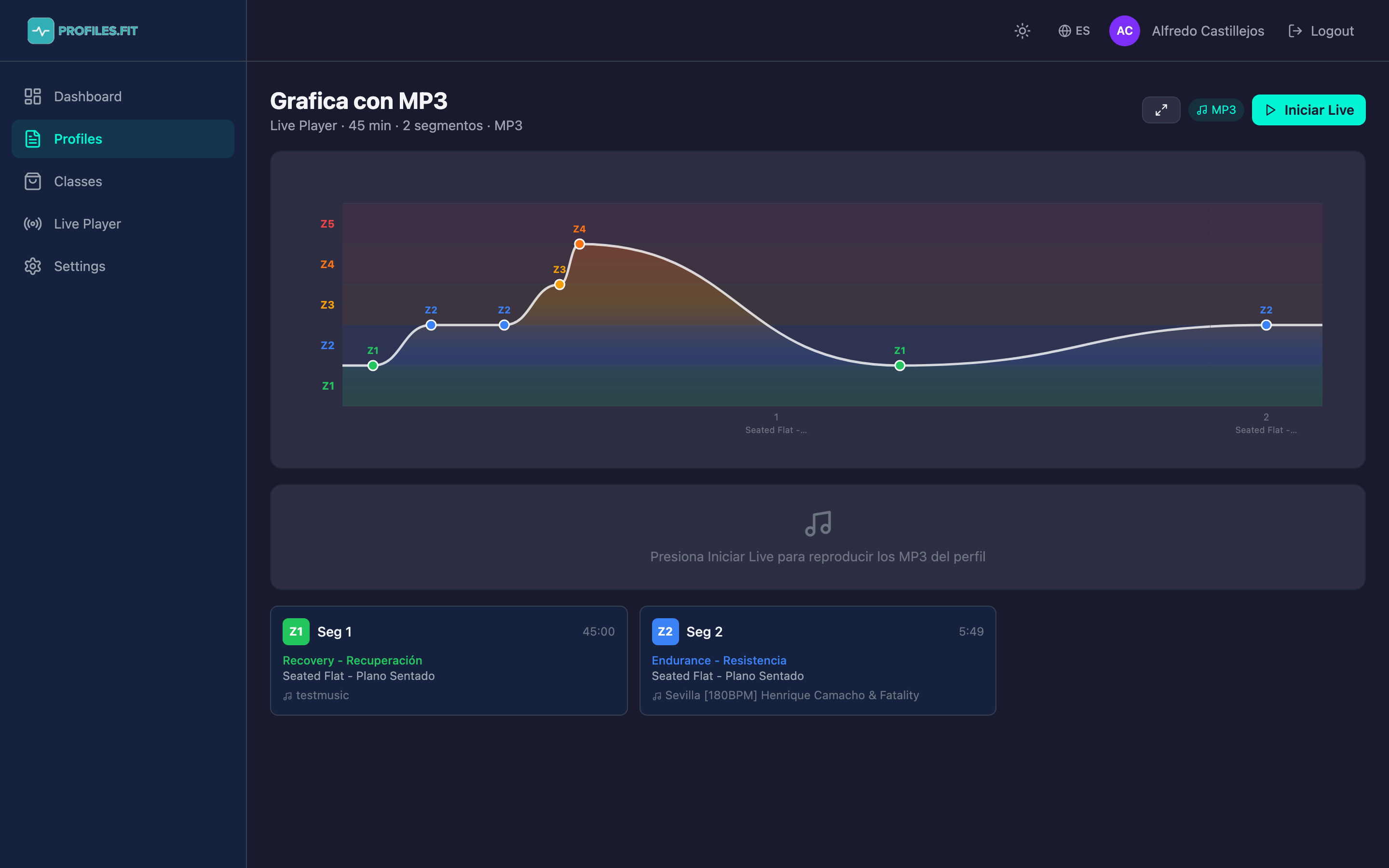
How to open the Live Player
- From the profiles list, click the Live button on the row of the profile you're about to teach.
- You can also open it from within the profile editor via the Live button at the top right.
- The Live Player opens with your profile loaded, ready to start.
- Click Start Live when class begins (the timer starts running).
On-screen elements
- Z1-Z5 zone graph: horizontal bars proportional to each segment's duration, colored by zone (Z1 green, Z2 blue, Z3 yellow, Z4 orange, Z5 red). The progress indicator sits on top.
- Active segment highlighted with glow and a white border. The white cursor inside marks the playback position.
- Current track: title, artist, album, waveform drawn in real time.
- Info panel: active zone, movement, target cadence/RPM, track BPM, remaining segment time.
- Next segment: visible countdown so you know what's coming and when it starts.
- Coaching notes: the free-text notes you entered in the editor, shown large during the segment.
Playback with Spotify
If your profile uses Spotify tracks and you have Spotify Premium:
- Click Start Live. Profiles.fit connects to the Web Playback SDK.
- Music starts playing in your browser (make sure your computer is routing audio to the right speakers).
- The graph syncs with what's playing — polling every 3 seconds.
- You can jump segments by clicking or dragging on the graph (works via Spotify Connect).
Spotify Free can't play in the browser
With a free Spotify account, the graph syncs with what you're hearing on
your phone or speaker (via "Currently Playing"), but you can't start
playback from Profiles.fit. Open the playlist in your Spotify app and
hit play there.
Playback with uploaded MP3s
If the profile uses your own MP3s, the Live Player plays them directly via HTML5 Audio:
- Click Start Live. The first track starts immediately.
- On track end, the next one starts automatically with no perceptible gap.
- Click or drag on the waveform to jump to another second inside the track.
- Click outside the current waveform (on a different segment) to jump to that track.
Fullscreen mode
- Click the fullscreen button in the corner (expand icon).
- All text gets bigger (title goes from 2xl to 3xl, movement and intensity show in giant type).
- Sidebar and admin header hide — only the class info remains.
- Press ESC or the minimize button to exit.
Pause and resume
During a class you may need to pause (interruption, student question, etc.):
- Play/Pause: spacebar or the central play button.
- The timer stops. The track pauses (Spotify or MP3).
- On resume, everything continues from where it left off.
Ending the class
When you reach the last segment and time runs out, the class ends automatically. A summary appears with total duration, number of segments and average zone distribution. Click Back to return to the profile editor.
Test the Live Player before class
At least once before teaching a profile live, open it in Live Player
and verify that every segment has a track, transitions feel good, and
the real duration matches what you planned. Catching a blank segment
at home is much better than in the middle of class.