Sub-segments let you break a segment into smaller parts within the same song. They're useful when a 4-minute track needs intensity variations, movement changes or recovery blocks without cutting to a different song.
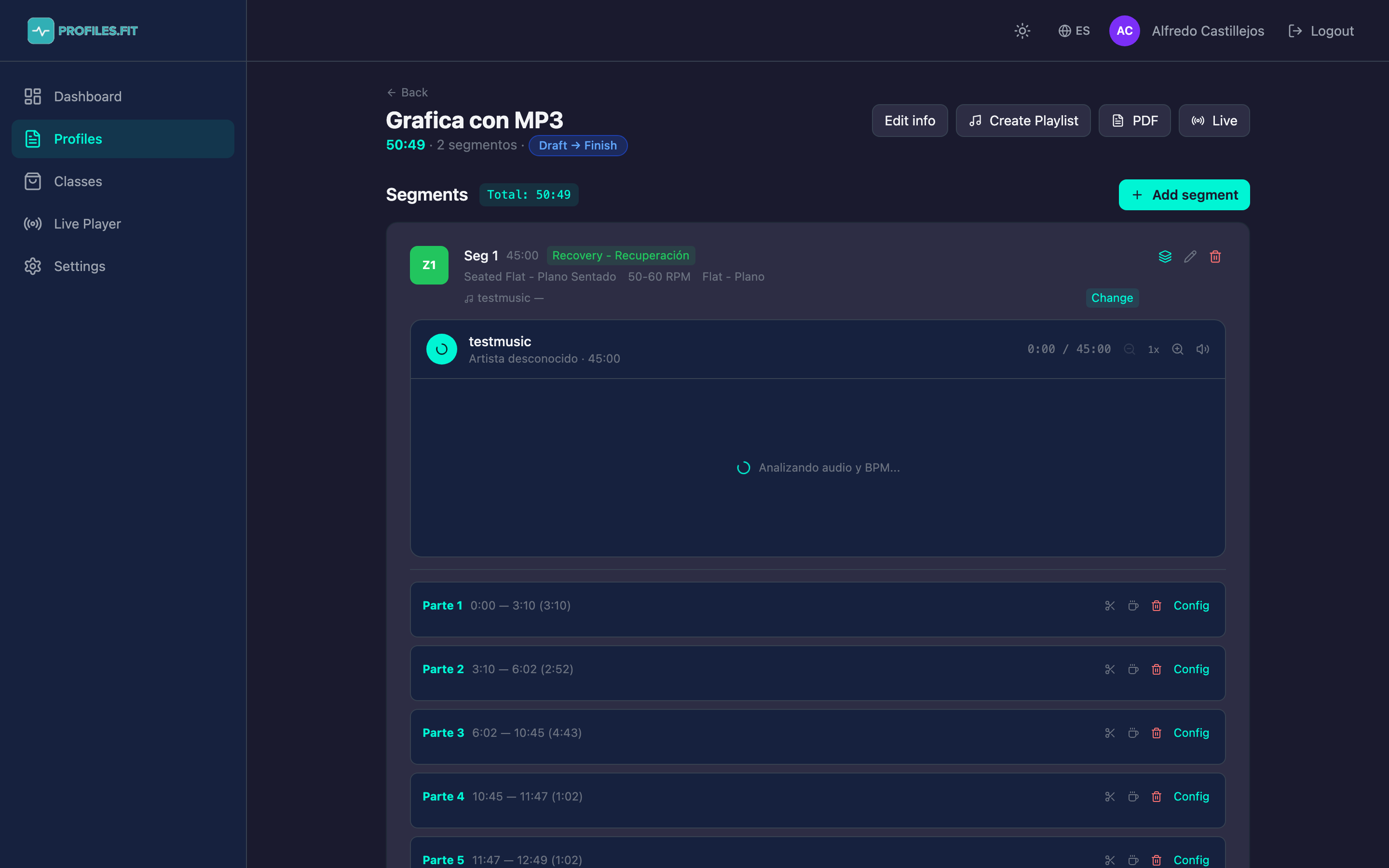
When to use sub-segments
- Intervals inside a track: e.g. a 4-minute song where you do 30s of sprint and 30s of recovery on repeat.
- Blocks with different movements: a long track where the first 2 min are Seated flat and the next 2 min are Standing climb.
- Tabata or HIIT on a fixed song: 20s work / 10s rest × 8 rounds over a single track.
- Progressive warm-ups: increase intensity gradually without cutting the music.
How to open the sub-segment editor
- In the profile editor, locate the segment you want to break down.
- At the top right of the segment, click the Sub-segments icon (tooltip Sub-segmentos).
- The list of parts unfolds below the segment along with the track's waveform.
- On first open, if you have no parts defined, the editor creates a single part covering the whole segment.
Creating and editing parts
- Click + Add part to create a new division.
- Adjust start and end in seconds with the numeric controls, or drag the dividers directly on the waveform.
- Set the movement and intensity zone for each part.
- Optional: mark the part as Active recovery. It's highlighted in gray and the Live Player announces the transition.
- Use the Config button next to each part to open detailed fields (coaching notes, RPE, etc.).
Reordering parts
Parts are automatically sorted by their start in seconds. You don't drag them: you adjust each part's start and the editor re-lays them. Parts can never overlap — if two try to touch the same seconds the editor warns you.
Saving changes
The editor auto-saves parts when you change any field. If you close the sub-segments panel with an open edit (e.g. inside the Config modal), the editor prompts you to confirm.
What happens in the Live Player
When you play a profile with sub-segments in the Live Player, the graph shows dividers inside the segment block and there's a separate countdown for each part. Active recoveries are visualized in a dimmed color. It's the best place to appreciate why breaking down your segments is worth it.